
Skip to main content Skip to footer
  • Showcases
  • Pricing
  • Solutions
    • For Teaching Business
    • For Service-Based Business
    • For NGOs
  • Resources
    • Our Partners
    • Blog
    • Help Center
    • English
    • 繁體中文
LoginGet Started NowStart Automating
    • English
    • 繁體中文
  • Showcases
  • Pricing
  • Solutions
    • For Teaching Business
    • For Service-Based Business
    • For NGOs
  • Resources
    • Our Partners
    • Blog
    • Help Center
LoginStart Automating

FAQ

3
  • Check Subscription Payment Records
  • FAQ – About Flowclass
  • What’s Flowclass?

Certificates

1
  • Creating a Certificate Template in Flowclass

Staff Management

4
  • Tutor Hourly Rate Settings and Salary Calculation
  • Add a mentor account
  • Assign a tutor account and available time to a class
  • How to delete account?

Initial Set Up

6
  • Set Up Branding & Region
  • Set Up Home Page
  • Set Up Gallery
  • Set Up Contact Information
  • Set Up Social Media
  • Set Up Custom Domain

Invoice Management

3
  • Create a regular shift invoice
  • Assign Students’ Course by Create and Send Invoice
  • Invoice Reviewing

Web Portal

3
  • Student Platform Rescheduling Guide
  • Student’s Guide to Joining a Course
  • Completing Payments

Course Settings

4
  • Set Up Course Page & SEO
  • Set Up Sort & Filter for Courses
  • After-Application QR Code & Message
  • Set Up Terms & Conditions

Class Types & Settings

6
  • Regular Class v2: Set Up Once, Repeat Forever
  • Choose the Right Type of Classes
  • Set Up Events (Paid & Free)
  • Set Up Regular Class
  • Set Up Recurring Class
  • How to update Class Quota in Flowclass?

Custom Forms

6
  • Create Custom Data Fields
  • How to Create Custom Data Fields in Flowclass
  • Modify & Reorder Custom Data Fields
  • Create Application Form
  • Create Multi-Step Forms
  • Create a Membership Application Form

Payment Methods

3
  • Add Points for Students
  • Creating Payment Methods
  • Connect Stripe Online Payments

Application Records

3
  • Process Application Records
  • Filter Application Statuses
  • Export Data & View Analytics

WhatsApp & Email

7
  • Adjust Student Notification Preferences
  • Notification Log
  • Set Up WhatsApp Templates
  • Editing WhatsApp Templates
  • Use Your Logo in Emails
  • Re-Send Payment Notifications
  • Notifications Sent After Application

Integration

3
  • Embed Into Websites
  • Label Printing with Flowclass
  • Label Printing with Software

Student Management

4
  • The Student Central
  • Import & Add Student
  • Update Student Records
  • Changing the password for student accounts

Student Schedule Mangement

6
  • Rescheduling Function Administrator Settings and Approval
  • Closing Time
  • Assign Course to Student
  • Change Student’s Class
  • Assign Lesson To Student
  • Change Lesson Time & Status

Updates

1
  • Flowclass v2.1.0 Update

Promotions

4
  • Assign coupon to the student
  • Create Coupons
  • Create Free Coupons
  • Add registration fee

Calendar

4
  • Course Calendar
  • Change & Delay Class
  • Mark Attendance
  • View & Change Student’s Lesson
View Categories
  • Home
  • Flowclass Documentation
  • Application Records
  • Export Data & View Analytics

Export Data & View Analytics

1 min read

Viewing Application Data #

The Payment Record feature allows admins to track and manage payments from students over a specific period. This tool provides a comprehensive view of all payment statuses, methods, and amounts, helping you manage finances efficiently.
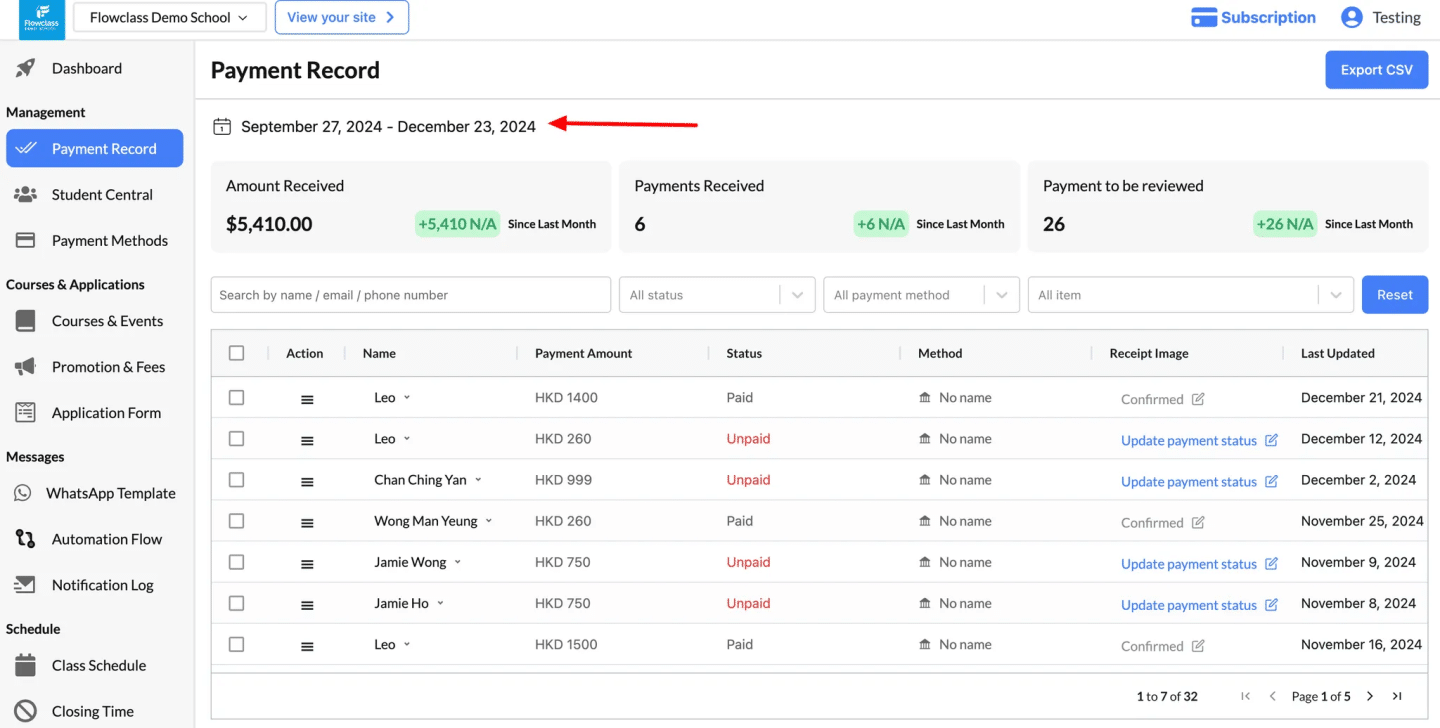
  1. Access the Payment Record Page:
    • Navigate to the Payment Record tab under the Management section in the left-hand menu.
  2. Set the Date Range:
    • Use the date selector at the top of the page to specify the period for which you want to view payment records.
    • This helps you filter payments based on a specific time frame.
  3. View Payment Summary:
    • At the top of the page, you will see key statistics, including:
      • Amount Received: Total payments received during the selected period.
      • Payments Received: Number of successful payments.
      • Payments to Be Reviewed: Pending or unconfirmed payments.
  4. Search and Filter Payments:
    • Use the search bar to find payments by student name, email, or phone number.
    • Apply filters such as status (e.g., Paid, Unpaid) or payment method to refine the list.
  5. Review Payment Details:
    • The table displays detailed payment records, including:
      • Student’s name.
      • Payment amount.
      • Payment status (e.g., Paid, Unpaid).
      • Payment method.
      • Last updated date.
    • You can click “Update payment status” to confirm or adjust the status of a specific payment.

Exporting CSV #

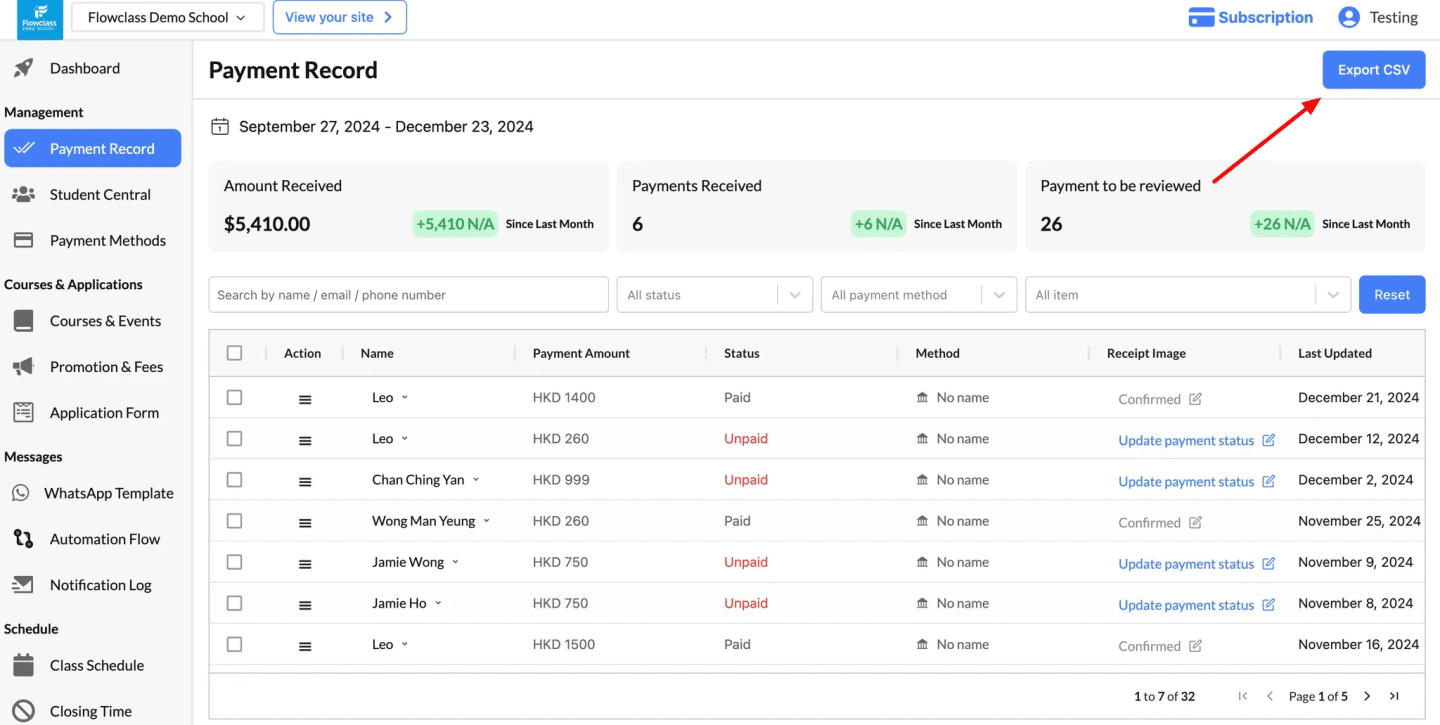
Click the Export CSV button in the top-right corner to download the payment records for offline use or further analysis.
  1. Navigate to the Payment Record Page:
    • Go to the Payment Record tab under the Management section in the left-hand menu.
  2. Set the Date Range (Optional):
    • Use the date selector at the top to specify the period for which you want to export payment data.
    • If no date range is selected, the system will export all payment records.
  3. Apply Filters (Optional):
    • Use the search bar or filters (e.g., by status or payment method) to refine the list of records before exporting.
    • Only the filtered records will be included in the CSV file.
  4. Click the Export CSV Button:
    • Locate the “Export CSV” button in the top-right corner of the page and click it.
    • The system will generate a CSV file with all the payment records matching your selected criteria.
  5. Download the File:
    • The CSV file will automatically download to your device.
    • You can open it in spreadsheet software such as Excel or Google Sheets for further review and analysis.

Example of CSV Export

  • Student Name
  • Payment Amount
  • Payment Status (Paid, Unpaid, etc.)
  • Payment Method
  • Date of Last Update
  • Additional details like receipt confirmation and related notes.

Following is an example of an exported file.

Forum Event_Half day pass_20260301Download
Updated on March 5, 2026

What are your Feelings

  • Happy
  • Normal
  • Sad

Share This Article :

  • Facebook
  • X
  • LinkedIn
  • Pinterest
Table of Contents
  • Viewing Application Data
  • Exporting CSV
Ready to jump in?

Flowclass helps automate tedious tasks so educators can focus on what matters most – Teaching.

Get Started

Start streamlining student bookings and automating payment processes today with Flowclass!

感謝您的訂閱!

我們會送上最有效的學習情報🥰

Flowclass
  • Follow us on Facebook
  • Follow us on Instagram
  • Follow us on X
info@flowclass.io
+852 5722 5763
Flat 151 & 152, 15/F, Weswick Commercial Building, 147-149 Queen’s Road East, Wan Chai, Hong Kong

Solutions

  • Solutions
    • For Teaching Business
    • For Service-Based Business
    • For NGOs
  • Showcases

Resource

  • Flowclass Blogs
  • Help Centre
  • Recent Updates
Solutions
  • Solutions
    • For Teaching Business
    • For Service-Based Business
    • For NGOs
  • Showcases
Resource
  • Flowclass Blogs
  • Help Centre
  • Recent Updates

2026 © All rights reserved by Flowsophic Limited (Doing Business As Flowclass)